

Distribution
This document covers the two ways to distribute your third-party app and the operational considerations that come with each.
Two Distribution Models
| Model | Who Can Install | How They Find It |
|---|---|---|
| Private | Members of the workspace that created the app | Installed internally within the same workspace |
| Public (marketplace) | Any workspace agent with permission | CRM app marketplace |
Private Distribution
Private apps are restricted to the workspace in which they were created. Only members of that workspace can install and use the app.
- Ideal for internal automation, custom actions, or workspace-specific integrations.
What the Admin Sees
When an admin installs an app, the CRM shows a consent screen with:
- Your app's name and icon.
- The list of permission scopes your app is requesting.
- An "Approve" / "Deny" button.
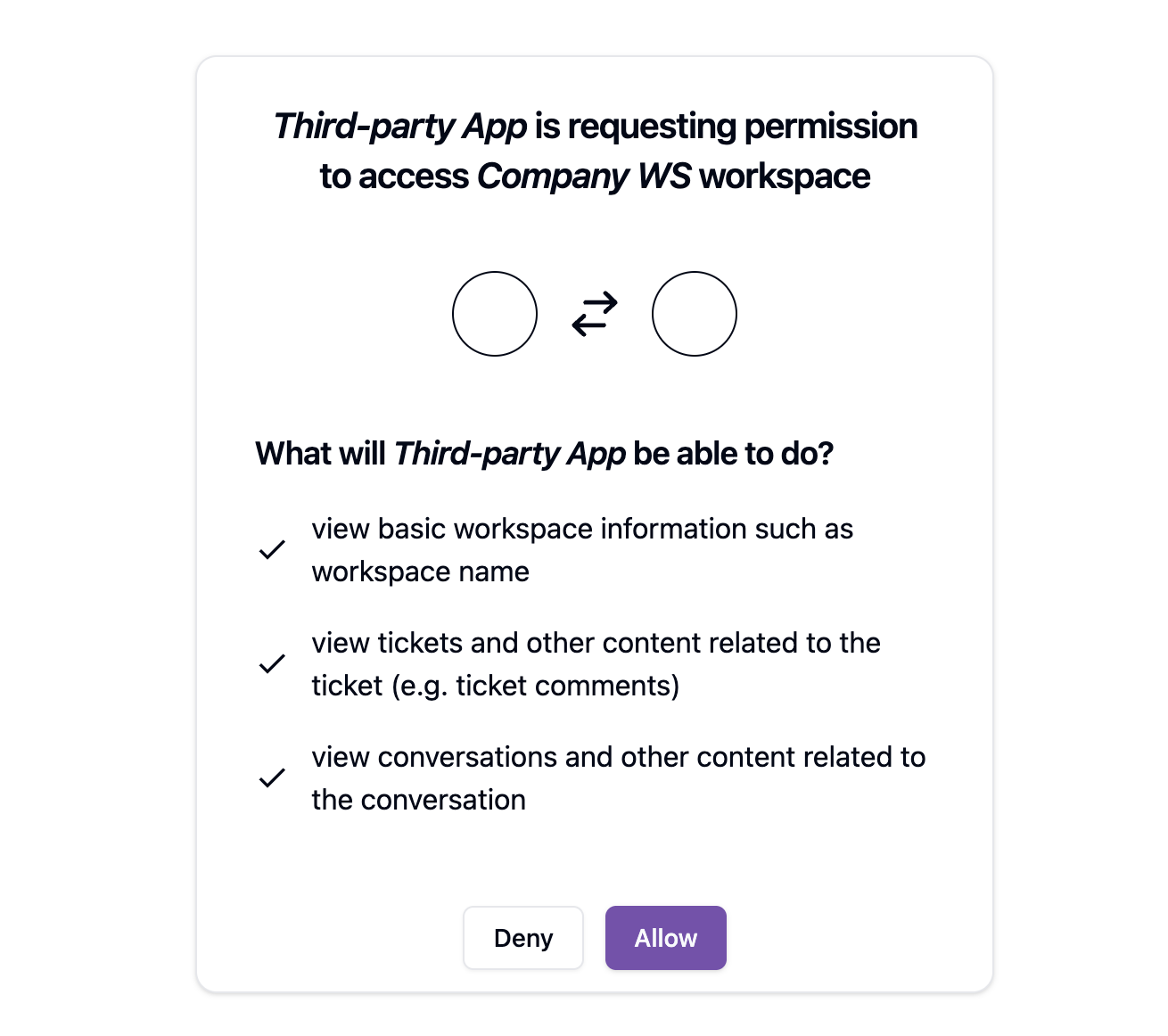
After approval, the CRM redirects to your redirect_uri with the code. From there your normal OAuth callback and token exchange flow completes the installation (see OAuth Flow).
Once installed, agents can view the app's details page in the 3rd Party Apps section, where they can reinstall if needed (e.g. after scope changes) or access your app's configuration dashboard.
Public Distribution (Marketplace)
Publishing makes your app discoverable by any workspace in the CRM's app marketplace. Any agent can find and install it directly from the marketplace.
How to Publish
To publish your app on the marketplace, you must contact us. Self-service publishing is not available.
- Ensure all prerequisites above are met.
- Reach out to us with your app details and request to be listed on the marketplace.
- Once approved and published, your app appears in the CRM marketplace for all agents.
What Changes After Publishing
- Any agent can now install your app via the marketplace, not just the workspace that created it.
- Your app's information is publicly visible.
- You cannot unpublish the app by yourself, you need to contact us to unpublish it.
Scope Changes After Publishing
If you add new scopes to your app after it has been installed in some workspaces:
Existing installations do not automatically gain the new scopes. Access tokens issued before the scope change only cover the scopes that were approved at install time.
This means:
- Old tokens will get a
403 Forbiddenwhen calling API endpoints that require the new scope. - Affected workspaces must re-install the app (go through the OAuth consent screen again) to approve the new scopes.
How to Handle This
- Detect
403 Forbiddenresponses in your API client. - Check whether the error is scope-related (look for a
forbiddenslug in the error response). - Mark that workspace as needing re-authorization in your DB.
- Show the agent a banner or send an email: "New permissions required, please reconnect your CRM workspace."
- Your reconnect flow re-triggers the OAuth installation (same flow as first install).
Note: The same app (same
CRM_APP_ID/CRM_CLIENT_ID) is used for both the original install and the re-install, the admin simply approves the new consent screen, and a new access token is issued with the full updated scopes.
Multi-Tenant Considerations at Scale
Once your app is publicly available, many workspaces may install it. Every workspace gets its own access_token, never mix tokens between workspaces. Your database primary key for tokens must be workspace_id, and every API call must use the token for the correct workspace.